
How to Change Your Chrome New Tab Background
Three ways to change the background of your Chrome new tab page - Customize Chrome, a browser theme, or a new tab extension-and how to pick between them.
Think about how often you open a new tab. First thing in the morning, between tasks, every time you look something up-it's the screen you see more than almost any other. And for most of us, it's the same plain search box on a blank page, every single time.
It deserves better, and changing it takes about a minute. The catch is that Chrome doesn't put the setting where you'd look: there's nothing under Settings called “new tab background”. There are three ways to do it, and they're not the same thing-one changes the picture behind Google's page, one recolors the browser itself, and one replaces the page altogether. Here's what each can do, and how to pick.
For a photo behind Google's search box, use Customize Chrome-the button in the bottom-right of any new tab. To recolor the whole browser, install a Chrome theme. To replace the page with moving wallpapers, your own photos, a to-do list and a focus timer, use a new tab extension.
1. Customize Chrome - the built-in background picker
Chrome has a background picker built into the new tab page itself, which is why it is easy to miss-it is not in Settings at all.
- Open a new tabPress
Ctrl+T(orCmd+Ton a Mac) so you are looking at Chrome's own new tab page, not a site. - Click Customize ChromeIt is the button in the bottom-right corner of the page. A side panel opens on the right.
- Pick a backgroundChoose Change theme or Upload an image in the panel. Chrome ships collections-landscapes, textures, art - or you can point it at a picture of your own.
This is the fastest route and it needs nothing installed. The limit is what it is: one still image, plus Chrome's own layout of a search bar and shortcut tiles. You can't change what is on the page, only what sits behind it.
If the Customize Chrome button isn't there, your new tab page is already being replaced by an extension. Remove it at chrome://extensions and the button comes back.
2. Browser themes - colors for the whole window
A theme from the Chrome Web Store changes the browser frame: the toolbar, the tab strip, the color of the window around your pages. Many themes also set a new tab background image.
Install one, and it applies everywhere until you remove it. Themes are worth it if what bothers you is the browser's chrome rather than the new tab page - a dark toolbar, say, instead of the default light one. They are a poor fit if what you wanted was a page worth looking at, because the picture is still static and the page underneath is unchanged.
To undo one: Settings → Appearance → Reset to default.
3. A new tab extension - replacing the page
The third option is to let an extension take over the new tab page entirely. Instead of choosing a picture to sit behind Google's layout, you get a different page: the wallpaper, the widgets on it, and what happens when you open it are all yours to set.
This is the route to take if you want anything the first two can't do:
- Wallpapers that move - 3D scenes, WebGL and generative art, video loops, not just a photograph.
- A wallpaper that changes on its own, on a slideshow, so the tab isn't the same image for a month.
- Your own photos - a trip, your pet, your kids - kept alongside a library of curated ones.
- Widgets you choose - a clock, a to-do list, quick links to the sites you actually open, a focus timer.
- A different page per mood or task, switched in a click rather than dug out of a settings panel.
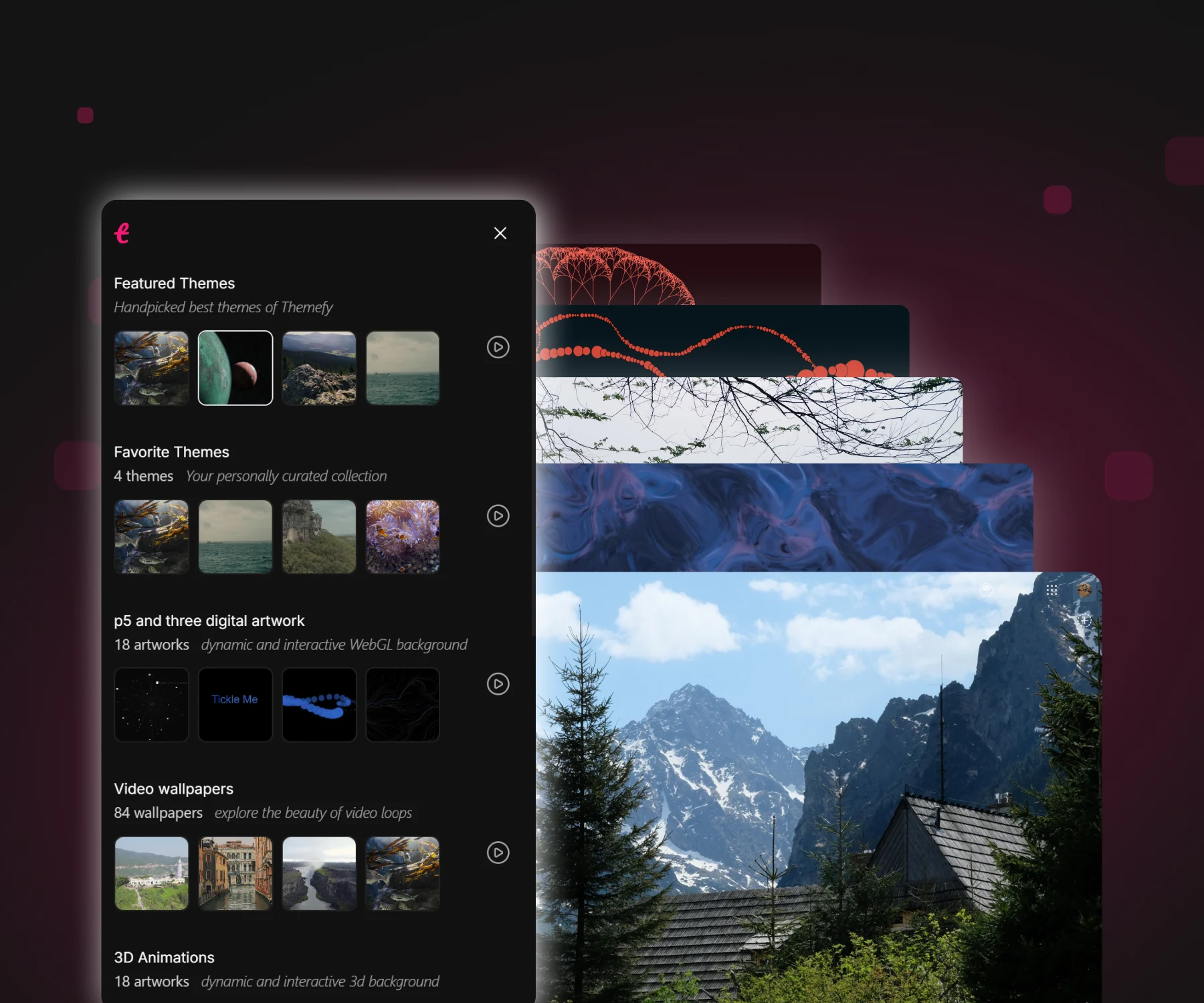
Themefy is built for exactly this. It replaces the new tab with an interactive scene - p5.js and Three.js artwork, video wallpapers, and photography from collections like space, ocean, travel, wildlife and pets - and puts your quick links, a to-do list and a Pomodoro timer on top of it.
Setting it up
- Install it from the Chrome Web StoreOne click, no account needed. Open a new tab and the page is already live.
- Open the sidebar and pick a themeClick the Themefy logo. Themes browses by category - 3D, generative art, video, space, travel - and Favorites keeps the ones you've saved. Or shuffle the lot and let it surprise you.
- Or use a photo of your ownOpen My wallpapers in the same sidebar and drop in a JPG, PNG, WebP or AVIF up to 10 MB. It's resized and kept on your device - never uploaded anywhere. The free plan keeps one; Pro keeps up to ten.
- Turn on a slideshow, or keep one sceneSet an interval and the wallpaper rotates through a category on its own. The free plan covers three wallpaper changes a day; Pro lifts the limit and unlocks the premium themes.
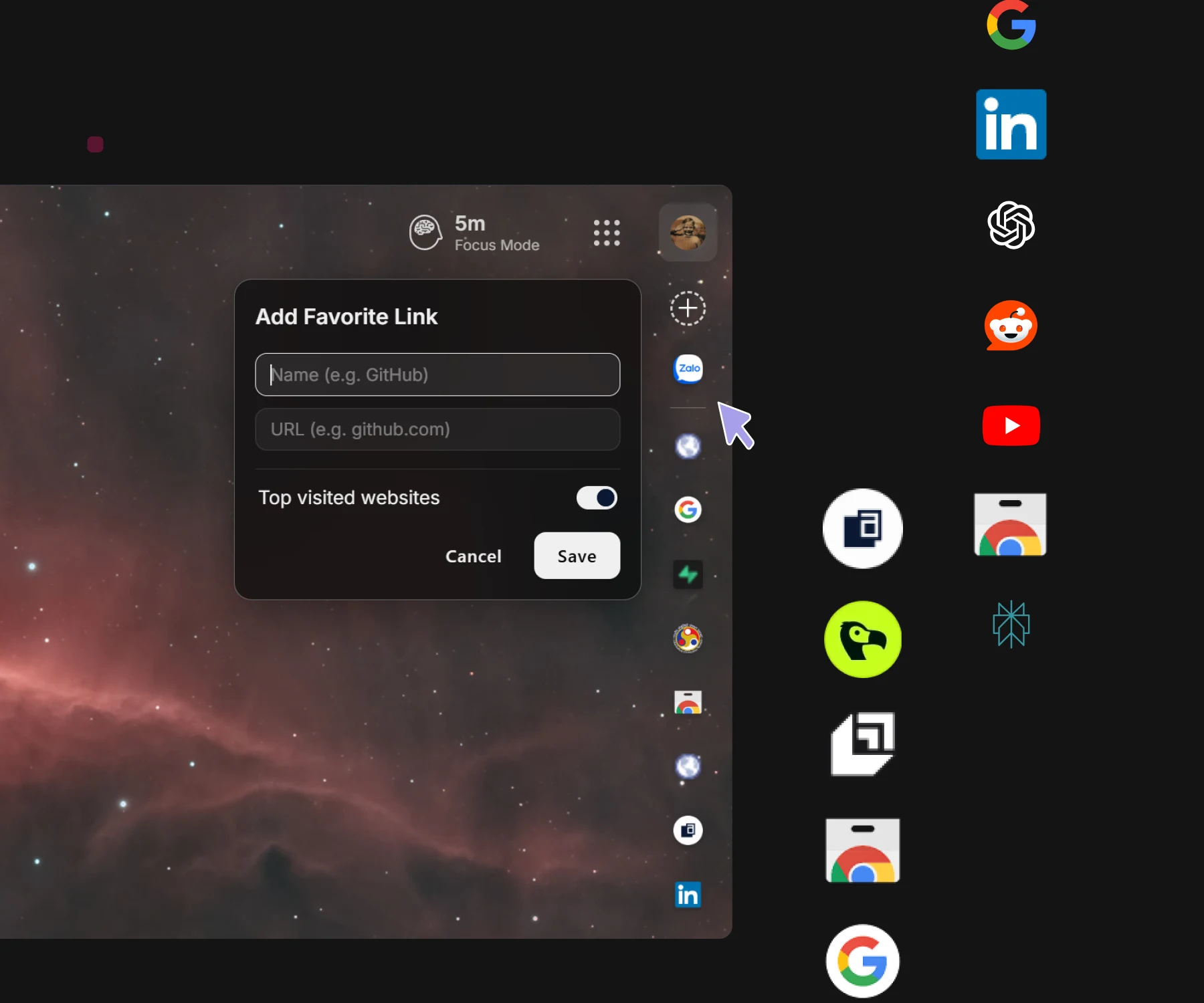
- Add your links and widgetsPin the sites you open every morning, and switch on only the widgets you want-Search, Date & Time, Top Sites.
Chrome extensions install into any Chromium browser, so this works in Brave and Edge as well as Chrome.
Which one should you use?
- You want a photo behind the search box and nothing else to change → Customize Chrome. It takes ten seconds and installs nothing.
- The browser's own colors are what bother you → a theme from the Chrome Web Store.
- You want the page itself to be different - moving art, a timer, your own links → a new tab extension.
They are not mutually exclusive in principle, but in practice the third overrides the first: whichever extension owns the new tab page wins, and Chrome's own background stops being visible.
Common questions
Why does my new tab background keep resetting?
Two extensions are usually fighting over the new tab page, or a theme is being re-applied by Chrome sync from another device. Open chrome://extensions, keep one new tab extension enabled, and check Settings → You and Google → Sync if the change travels between machines.
How do I get the default new tab page back?
Go to chrome://extensions and remove or disable whichever extension overrides the new tab page. Chrome restores its own page immediately - no restart needed.
Can I use my own image as the new tab background?
Yes, two ways. Customize Chrome has an Upload an image option that takes a file from your computer. Themefy does too: open My wallpapers in the theme sidebar and add a JPG, PNG, WebP or AVIF up to 10 MB. The image stays on your device, and the free plan keeps one - Pro keeps up to ten and lets you run them as a slideshow.
Does a new tab extension slow the browser down?
It depends on what the page renders. A static photo costs almost nothing; a heavy 3D scene asks more of your GPU. Themefy checks whether your device is lower-powered and offers a lighter theme - a photo or a video loop - when a 3D scene might struggle.
Does any of this work in Brave or Edge?
Chrome Web Store extensions install in any Chromium-based browser, so Brave and Edge are covered. Both also have their own built-in new tab settings, which the extension replaces once installed.
Make the tab worth opening
Changing the background is the easy half. The half that sticks is making the page do something for you - which is the difference between a nicer picture and a tab you're glad to land on.
If that is where you're heading, the next one to read is how to run a Pomodoro timer in your browser, which covers putting a focus routine on the same page.